![black.png]](https://helpcenter.predictap.com/hs-fs/hubfs/black.png?height=40&name=black.png)
When using User Property Security, each user only sees invoices for the properties they have access to. Some documents don’t have a property, though.
Examples are files flagged as Not an Invoice or Multiple Invoices, invoices where no property was predicted, and invoices where someone removed the property. The No Property permission controls who can see these documents.
How it works
- Who sees these invoices: users with the No Property permission see every invoice that doesn’t have a property, so they can review and resolve them. Users without it won’t see these invoices in their queue, search results or homepage counts.
- On by default: new users get the No Property permission automatically. Admins can remove it from users who don’t need to see these documents.
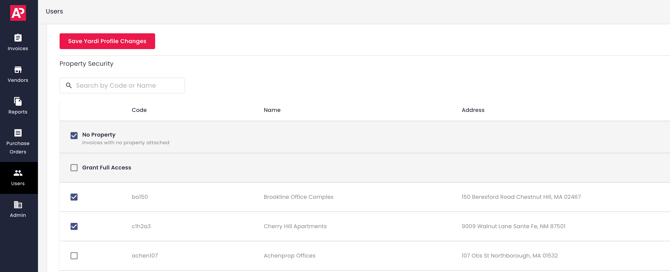
- Where to change it: go to the Users tab and open a user’s property settings.
- No Property has its own checkbox at the top of the property list, and it can be combined with specific properties. Users with All properties access see everything, including invoices without a property.
- What counts as no property: a document only counts if it has no property at all, whatever its status. For Bottomline (Nexus) customers, that means both the header property and every line-item property are blank.
- Removing a property: if a user without the No Property permission removes the last property from an invoice, PredictAP asks them to confirm first. After that, the invoice leaves their queue once they navigate away.
We recommend giving at least one person on your team the No Property permission, so documents without a property don’t go unreviewed.