![black.png]](https://helpcenter.predictap.com/hs-fs/hubfs/black.png?height=40&name=black.png)
Pagero SFTP E-Invoicing
Your EU vendors' e-invoices, coded automatically before they reach Yardi.
What's new
If you operate in the European Union, your vendors are required to submit invoices electronically through a government e-invoicing network. Those invoices arrive through Pagero, Yardi's e-invoicing partner, which delivers them into a secure folder for each of your legal entities.
PredictAP now connects to those folders directly. Your e-invoices are pulled in automatically, coded like every other invoice in your queue, and delivered to Yardi — so meeting the mandate doesn't mean running a second AP process alongside your main one.
How it works
- PredictAP connects to your Pagero SFTP folders — one connection per legal entity
- New e-invoices are collected automatically every two hours
- They enter your normal PredictAP environment and appear in your usual queue
- Prediction, exception handling and submission all work exactly as they do for any other invoice
- Coded invoices are delivered to Yardi through your existing submission flow
How to turn it on
This is set up for you rather than switched on in your settings. Contact your Customer Success representative to get started — they'll walk you through a short intake covering your legal entities, your Pagero folders, and the credentials PredictAP needs.
Setup effort scales with the number of legal entities you have rather than your invoice volume, since Pagero provides a separate folder for each one.
Who it's for
Customers running Yardi with properties or legal entities in the European Union, who are already receiving invoices through Pagero.
Common questions
Do we need to change how our team works?
No. E-invoices arrive in the same queue as everything else and follow the same review and approval process. There's no separate workflow to learn.
How quickly do e-invoices appear?
PredictAP checks your Pagero folders every two hours, so invoices appear shortly after Pagero delivers them rather than instantly.
We're in the EU but don't use Pagero. Does this apply to us?
Not currently — this connects to Pagero specifically. Let your Customer Success representative know which network you use so we can factor it into planning.
Does this replace Pagero?
No. Pagero remains your compliance layer and continues to receive invoices from your vendors. PredictAP handles what happens next: coding those invoices and getting them into Yardi.
Prediction Improvements
More consistent results on the fields your team checks first.
|
GOOD TO KNOW Company field prediction requires Yardi 25.7 or later. If you're on an earlier version, that part won't apply until you upgrade. |
What's new
We've made a series of improvements to how PredictAP reads the fields people scrutinise most closely: invoice total, invoice number, invoice date, and property. We've also added job code prediction for Bottomline-Nexus customers and a much better header notes predictor. Most of this is live already with nothing to configure.
How it works
- Invoice total — better at distinguishing current charges from total amount due on bills that carry a prior balance, more consistent handling of credits, and improved reading of multi-page invoices with subtotals
- Invoice number — improved recognition where characters are ambiguous on a scan, such as a capital I against a numeral 1 or a letter O against a zero, by cross-checking the source document
- Invoice date — handles vendors using day/month formats alongside those using month/day, without any configuration on your side
- Property — better matching for brand-new properties that don't yet have invoice history to learn from
- Company — intercompany invoices can now have the company field predicted, removing a manual step in Yardi (requires Yardi 25.7 or later)
- Job codes (Bottomline-Nexus) — dropdowns now populate for job code, job contract, job phase code and job cost code, and job code can be predicted from your coding history
- Header notes — PredictAP can now predict header notes from your historical patterns and similar invoices, rather than relying only on a fixed template
How to turn it on
Most of these are already applied to your environment with nothing to configure. Two are worth a conversation: job code prediction is switched on per field for Nexus customers, and header notes prediction is set up for you — contact your Customer Success or Support representative and they'll configure it to match how your team uses the notes field.
Who it's for
All customers. The utility bill and date format improvements matter most if you process bills with carried-forward balances or work with international vendors. Job code prediction applies to Nexus customers, and header notes prediction is useful wherever your team relies on the notes field for downstream information.
Common questions
Will this change how our historical invoices were coded?
No. These improvements apply to invoices processed going forward and don't revisit anything already coded.
Do we need to retrain or reconfigure anything?
Not for the accuracy improvements — those apply automatically. Job code prediction and header notes prediction are the two that involve a setup step, and we handle that for you.
Can we configure header notes predictions ourselves?
Not directly — we set this up for you. Get in touch with your Customer Success or Support representative and describe what you need in the notes field. That might be an account number so it appears on the check, a reference for e-invoicing, or simply following the patterns your team already uses. They'll configure it accordingly. If you prefer to keep using a fixed template instead, that continues to work.
No Property Permissions
Bring invoices without a property into your existing visibility rules.
What's new
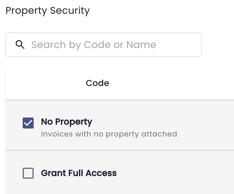
If you use property-based permissions to control which invoices each user can see, there was previously a gap: invoices that hadn't yet had a property assigned weren't covered by any visibility rule.
Admins can now grant a “No Property” permission to individual users, controlling exactly who can see those invoices.
How it works
- The permission is granted per user from the Users tab
- It applies everywhere property visibility already applies: your home page, the invoice list, search, CSV exports and the Vendor Detail view
- The Invoice Review screen now warns you before an action would leave an invoice without a property — for example, deleting all line items, compressing line items, or clearing properties during a low-confidence review
- Your existing users kept exactly the visibility they had before, so nothing changed when this was released
How to turn it on
The option appears automatically on the Users tab if your organisation uses property-based user permissions. No setup is required.
Nothing changes for any user until an admin adjusts their permissions.
Who it's for
Organisations using property-based user permissions — particularly larger portfolios where invoices routinely arrive before a property has been resolved.
Common questions
We don't see this option. Why?
It only appears for organisations using property-based user permissions. If you'd like to use those, your Customer Success representative can walk you through it.
Did anyone's access change when this was released?
No. Existing visibility was preserved exactly as it was. Changes only happen when an admin makes them.
Bulk Create Users
Add an entire team in one upload.
What's new
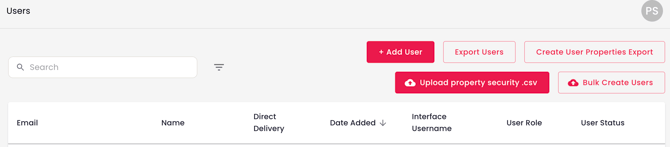
Creating users one at a time is fine for a handful of people and tedious for a department. A new Bulk Create Users option on the Users page lets an admin add everyone at once from a single CSV file.
How it works
- Select Bulk Create Users on the Users page to open the upload dialog
- Your CSV needs three columns — email, first_name and last_name — in any order; any extra columns are ignored
- You'll see exactly who will be created before anything happens, so you can check the list first
- Anyone who already has an account is skipped rather than duplicated or causing an error
How to turn it on
Available now to all admins, in every environment. No setup required.
Who it's for
Any organisation onboarding several people at once — new teams, acquisitions, or seasonal staffing changes.
Common questions
Does this assign permissions too?
No. This creates the user accounts. Property access and role assignment are set separately afterwards, so it's worth planning that as a second step when onboarding a large group.
What happens if someone in my file already has an account?
They're skipped. The rest of the file processes normally, so the count created may be lower than the number of rows in your file.
What if my column headers are named differently?
The three required headers must be named email, first_name and last_name. They can appear in any order, but the names need to match.
Confidence Scoring
Hold uncertain predictions for review before they reach your ERP.
|
GOOD TO KNOW Thresholds are calculated for your organisation based on your own data, so they aren't a single fixed number and may differ from another customer's. |
What's new
This isn't a new feature, but it's one many customers haven't switched on — and it's the setting most often mentioned by teams who've become comfortable letting invoices flow through automatically.
PredictAP can evaluate how confident it is in the vendor, property and GL account it predicts. When confidence falls below the threshold for your organisation, the invoice is held for your review instead of continuing to your ERP.
How it works
- Three fields can be scored: vendor, property and GL account
- Each prediction is assessed for how likely it is to be correct, then compared against a threshold calculated specifically for your organisation
- If it falls short, the invoice is held with a Low Confidence status and routed to your Needs Review queue
- The field is highlighted with the predicted value shown, so your reviewer can confirm or correct it rather than starting from scratch
- Each field is controlled independently — you can apply this to vendor only, or to all three
How to turn it on
Go to Admin › Prediction Settings › Invoice Exceptions and switch on the fields you want checked. Changes take effect immediately.
All three are off by default, so if you've never adjusted these settings, no confidence checks are running on your invoices today.
Who it's for
Customers who are running or considering direct delivery, newer customers still building confidence in automated coding, and any organisation working with new or infrequent vendors or a complex GL structure.
Common questions
Will this slow down our processing?
It will increase the number of invoices in your Needs Review queue, since that's what it's designed to do. Because it's per field, you can start with a single field and expand from there.
I remember these fields appearing blank. Has that changed?
Yes. Low-confidence fields used to be left empty. They now show PredictAP's predicted value with a highlight prompting review, so your team has a starting point rather than an empty field.
What happens on an invoice with multiple line items?
Confidence is assessed once per field for the invoice rather than per line item. Multi-line invoices show a banner on the Details tab rather than highlighting individual fields.
What if the invoice matches a purchase order?
When a PO is matched, the PO's values take precedence for property and GL account, so those confidence checks don't apply. Vendor confidence is still checked.
Invoice Email Redirect
Send an invoice that isn't yours to the right party — with a record of it.
|
AVAILABILITY This feature is enabled on request rather than switched on by default. Contact your Customer Success representative if you'd like it turned on for your environment. |
What's new
Some invoices reach your team that were never yours to pay — they belong to an external property manager, a joint venture partner, a different legal entity, or the tenant. Until now the options were to leave them in the queue, forward them from a personal mailbox with no record, or reject them and lose the context.
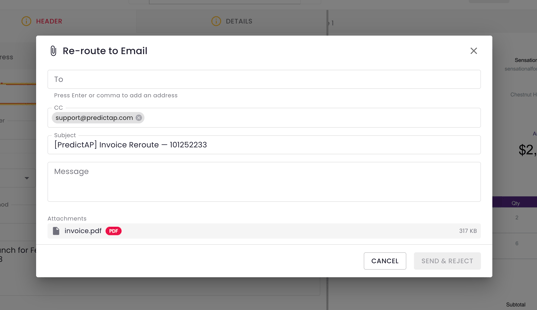
You can now email the invoice to the correct party directly from PredictAP, reject it in the same action, and keep the entire exchange attached to the invoice record.
How it works
- Select Reroute to Email from the invoice menu — available for invoices in Needs Review or Failed status
- A compose window opens with the subject pre-filled, the invoice PDF attached, and you copied automatically
- Send & Reject dispatches the email and marks the invoice as rejected, clearing it from your queue in one step
- If the email bounces, you're notified with the address that failed
How to turn it on
Contact your Customer Success representative to have this enabled for your environment.
Who it's for
Organisations working with third-party property managers, joint venture structures, or multiple legal entities — and teams handling invoices across several regions.
Common questions
Can we send an invoice without rejecting it?
Not currently. Send & Reject is a single action, designed for invoices your team isn't going to pay. Let your Customer Success representative know if a send-only option would be useful — that feedback shapes the roadmap.
Is there a record of what was sent?
Yes. The exchange is kept on the invoice record, so the handoff is auditable rather than sitting in an individual's sent folder.